How CT600 filing works in DormantFile
By Ben Davies · Updated 26 September 2026
We file your accounts and tax return for £19/year
File my dormant accountsIf HMRC sends your dormant company (one with no money in or out of its books all year) a notice to deliver a Company Tax Return — usually every year until HMRC records the company as dormant — you have to file a CT600 with HMRC, even though it owes nothing. DormantFile handles the whole submission for you; this guide walks through exactly what you do inside the app.
This is the practical, in-app companion to our general guide on how to file a nil CT600 with HMRC. Here we cover what each screen does and the choices you make along the way.
Before you start
You need two things from HMRC:
- Your Unique Taxpayer Reference (UTR) — the 10-digit number HMRC sent after your company was incorporated, on a letter called a CT41G.
- Your Government Gateway credentials — the user ID and password for your company's HMRC account.
These are separate from the Companies House authentication code (the 6-character code Companies House posts to the company's registered office) you use to file accounts.
The five steps
Turn on Corporation Tax
Open your company, go to Settings, and choose Enable CT600. Enter your UTR (it must be exactly 10 digits). That unlocks the Corporation Tax tab. If HMRC hasn't asked the company for a return, you simply leave this off and only file accounts — the two filings are independent.
Add your accounting period
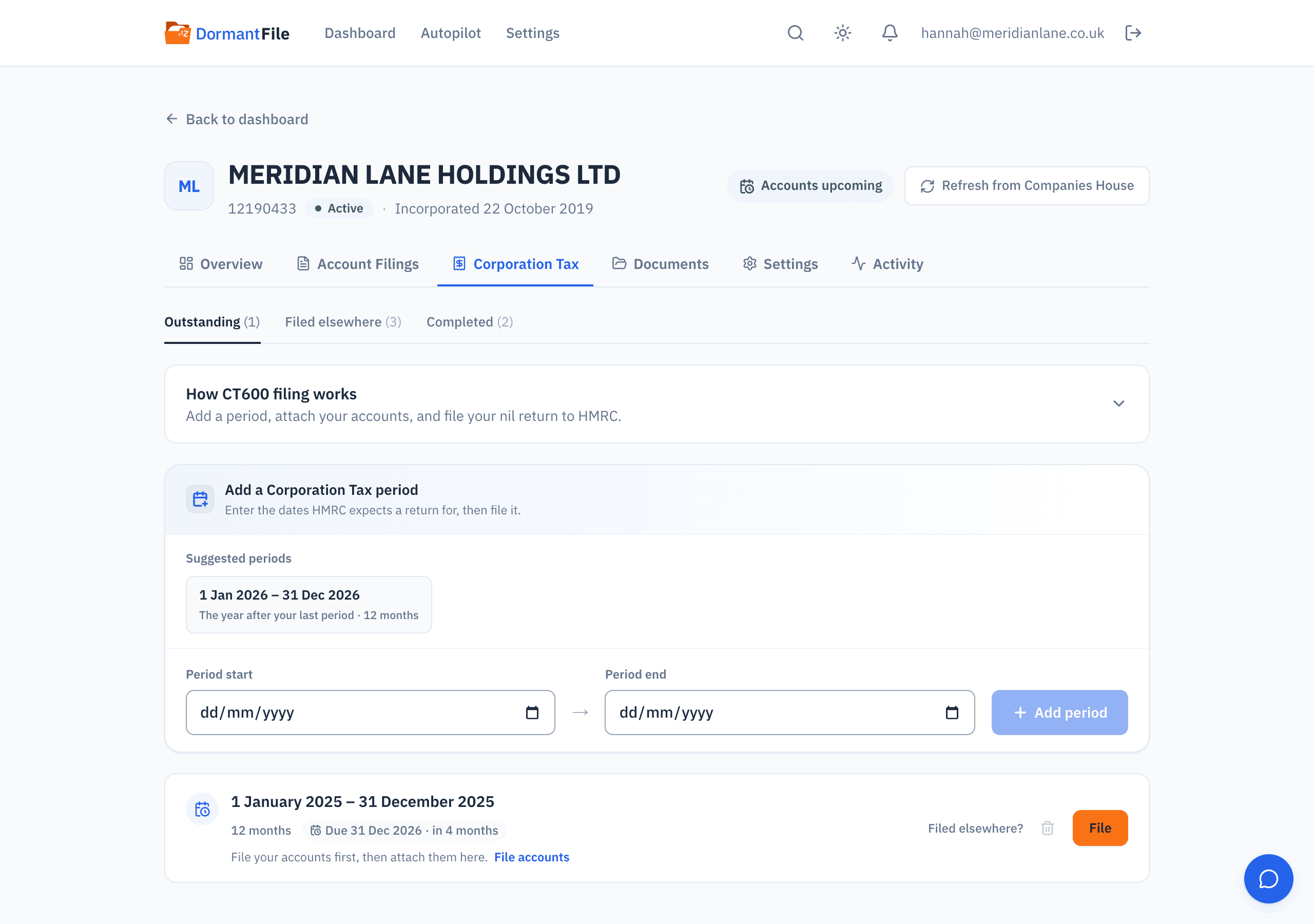
On the Corporation Tax tab, use Add a Corporation Tax period to enter the start and end date HMRC expects a return for. DormantFile offers suggested periods drawn from the accounts you've filed here and your Companies House accounting period — click one to fill the dates, then adjust if you need to. You add periods yourself; nothing is created automatically, because only you know which periods HMRC has asked for. If a period is longer than 12 months, it's split into a 12-month return plus a shorter one, which is what HMRC requires.
Attach your accounts
Every CT600 must include a copy of your statutory accounts. When you file, DormantFile staples on the dormant or micro-entity accounts you filed here for that period — and if your dormant accounts carry figures from trading years, the attached copy carries them too. If you filed accounts elsewhere, you can fetch them from Companies House or upload your own iXBRL file instead. (HMRC needs the machine-readable iXBRL version, not a PDF.)
Sign in with your Government Gateway
On the filing screen you confirm the company details and the director filing the return, preview exactly what will be sent, then enter your Government Gateway user ID and password. These authorise — "sign" — the submission and are used once, then discarded; they're never stored or logged. DormantFile builds the nil return (no tax to pay) and submits it directly to HMRC over their secure GovTalk service.
Get your confirmation
HMRC acknowledges the submission immediately, then processes it and returns a verdict. You can check the status yourself, but you don't have to — DormantFile re-checks for you and emails you the moment the return is accepted, along with your IRmark and a receipt you can keep as proof. If HMRC rejects it, you'll see their reason and can fix and resubmit.
What gets sent to HMRC
The return is always nil: there is no tax to pay. For a dormant company, turnover, profit and tax due are all zero. Alongside the CT600 itself, DormantFile attaches two iXBRL documents: your accounts for the period and a matching set of tax computations showing the nil calculation. HMRC won't accept a CT600 without accounts attached, so DormantFile always includes them for you.
Already filed this period somewhere else?
If you've already filed a CT600 for a period directly with HMRC or through an accountant, you don't need to file it again here. On the period, choose Filed elsewhere? to clear it from your outstanding list. It moves to a Filed elsewhere tab where you can undo that at any time.
You only file a CT600 if HMRC has issued a notice to deliver a Company Tax Return. If you're unsure whether you owe one, run our free CT600 checker — seven questions and we'll tell you exactly where you stand.
When is it due?
The CT600 is due 12 months after the end of its accounting period — longer than the 9-month Companies House accounts deadline. We explain how the two relate in our guide to dormant company filing deadlines.